
If you want to make your screen brighter than maximum, first check what is limiting the display. Some fixes restore unused panel brightness; others only change how the image looks.
You drag the brightness slider all the way to 100%.
And the screen is still too dark.
This happens surprisingly often—especially when you’re working beside a window, using a laptop outdoors, watching HDR content, or connecting an external monitor.
But here’s the interesting part:
100% brightness does not always mean your display is producing 100% of the brightness it is physically capable of producing.
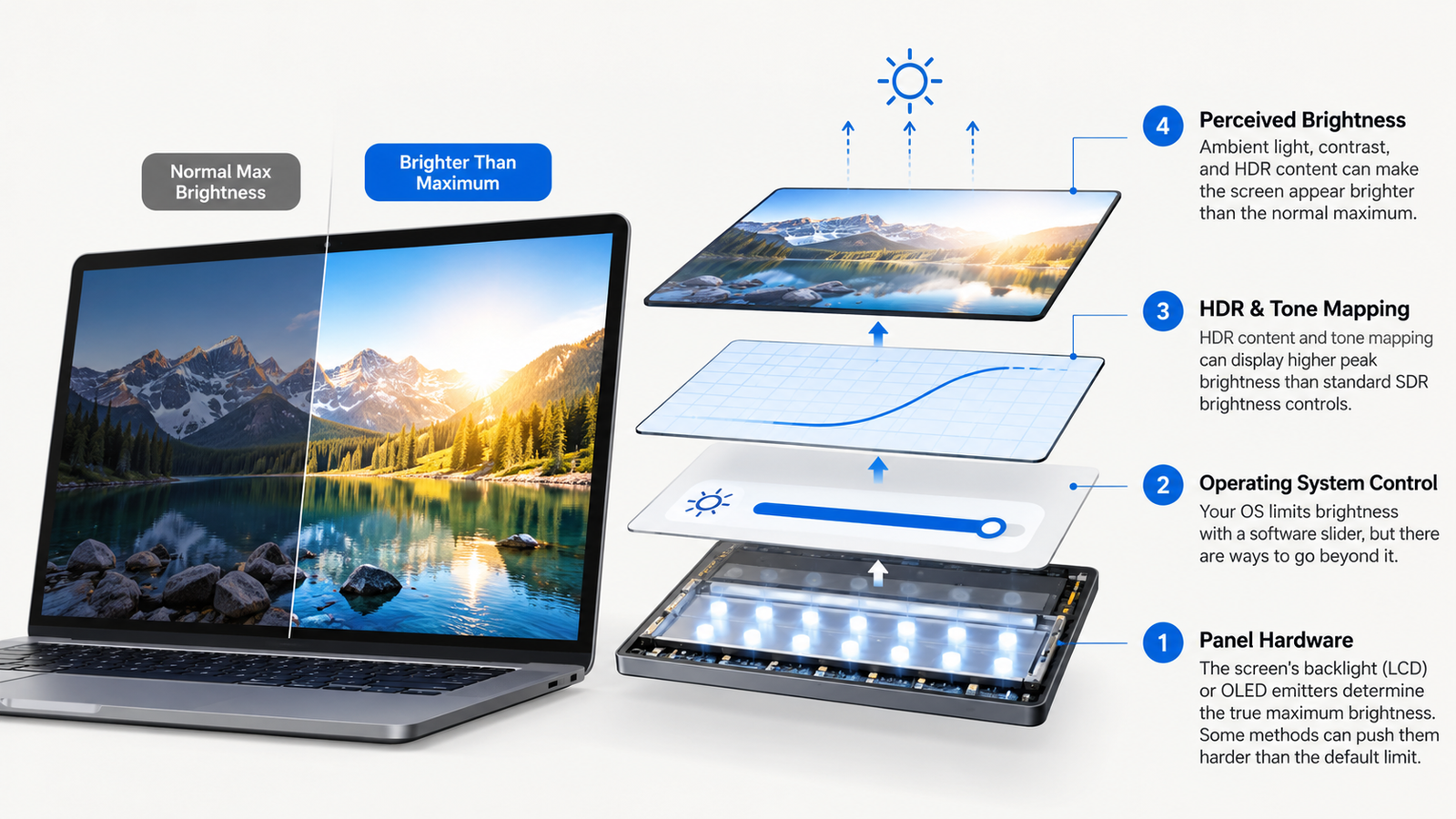
Modern displays have several layers controlling brightness:
Display hardware → firmware → operating system → HDR/tone mapping → the image you actually see
Depending on your laptop or monitor, changing one of those layers can make your screen noticeably brighter even when the normal brightness slider is already maxed out.
But there’s an important distinction.
Some techniques genuinely increase the light produced by the display.
Others only make the image look brighter.
Let’s separate the two.
Can You Actually Go Above 100% Brightness?
Sometimes.
But software cannot magically turn a 300-nit display into a 1,000-nit display.
The physical panel ultimately determines how bright your screen can become.
The brightness slider is one control in a longer pipeline.
Normally:
Brightness slider
      ↓
Display controller
      ↓
Backlight / OLED pixels
      ↓
Light reaching your eyes
The operating system may deliberately prevent the panel from operating at its absolute maximum because of:
- power consumption
- temperature
- battery life
- OLED longevity
- display calibration
- HDR requirements
This is why some displays have additional brightness available under certain conditions.
Some MacBook Pro models illustrate the difference: their HDR brightness rating is higher than their normal SDR desktop rating. However, a peak HDR rating is not a promise of sustained brightness across the whole screen.
That’s significantly beyond what older laptop displays could produce.
So there are really three meanings of "brighter than maximum":
- Unlock more physical panel brightness.
- Increase HDR or SDR luminance.
- Manipulate contrast/gamma so the screen appears brighter.
Understanding which one you’re doing matters.
1. Make your screen brighter than maximum on Windows: check both controls
Before modifying anything, eliminate the obvious limits.
Windows 11
Open:
Settings → System → Display
Move Brightness to 100%.
You can also use your laptop’s brightness function keys.
For an external monitor, Windows may not control the monitor’s physical backlight. Open the monitor’s built-in menu instead and check its brightness setting.
Many people unknowingly have:
Windows brightness: 100%
Monitor brightness: 60%
In that situation, Windows is maxed out—but the display itself isn’t.
2. Check for an Eco or Power-Saving Mode
This is one of the easiest brightness limits to miss.
Displays frequently include options such as:
- Eco Mode
- Energy Saving
- Battery Saver
- Smart Energy Saving
- Power Saving
- Auto Brightness
These features can cap the backlight even when your brightness slider says 100%.
On Windows laptops, connect the charger and temporarily turn off Energy saver or Battery saver. Names vary by Windows version. Restore power-saving settings when you no longer need the extra brightness.
On external monitors, open the monitor’s on-screen menu and check whether an energy-saving mode is active.
To make your screen brighter than maximum in this situation, remove the power-saving cap first. The panel itself may already have the headroom.
3. Disable Automatic Brightness When It Works Against You
Many modern laptops contain ambient-light sensors.
Your computer measures the room and automatically changes display brightness.
Usually this works well.
Until it doesn’t.
You might manually select maximum brightness while Windows or your laptop manufacturer’s software quietly reduces it again.
Look for settings such as:
Change brightness automatically when lighting changes
In Windows 11, expand Brightness in Display settings. If available, compare the automatic lighting option and Change brightness based on content. Manufacturer utilities may have their own controls.
Some laptops also reduce contrast depending on what’s being displayed to save power.
If the screen seems to become darker when displaying dark websites or applications, dynamic power management may be responsible rather than the brightness slider itself.
4. Can HDR make your screen brighter than maximum?
HDR is where things become more interesting.
HDR stands for High Dynamic Range.
Instead of treating your entire display as having roughly the same luminance range, HDR allows content to contain much brighter highlights.
For example:
Normal SDR scene

Dark ─────────────── Bright


HDR scene

Dark ───────────────────────────────── Very Bright
On Windows 11:
Settings → System → Display → HDR
Enable Use HDR if your display supports it. Select the correct screen first when using more than one monitor. HDR support alone does not guarantee high peak brightness.
Microsoft also provides the Windows HDR Calibration app, which determines characteristics including the darkest visible details and the maximum brightness your HDR display can reproduce.
For the exact controls on your setup, follow Microsoft’s HDR settings guide.
Microsoft notes that Windows treats SDR and HDR brightness differently, and the available controls behave differently depending on whether the display is internal or external.
This means HDR can sometimes expose brightness behavior you won’t see with ordinary SDR desktop content.
But HDR doesn’t automatically make everything better
Turning HDR on can sometimes make normal desktop applications appear:
- washed out
- gray
- too dark
- strangely contrasted
Tone mapping, display profiles, drivers and the display’s own settings can all contribute. HDR does not guarantee a brighter desktop.
Use Windows’ SDR content brightness control instead of immediately changing GPU gamma or contrast settings.
5. Windows 11: Calibrate HDR Properly
If your HDR screen feels strangely dim, this is worth doing before installing third-party software.
Use Microsoft’s Windows HDR Calibration app on a supported Windows 11 HDR setup. It creates a calibration profile; it does not increase the panel’s physical limit.
It guides you through tests for:
- minimum luminance
- maximum luminance
- maximum full-frame luminance
- color saturation
Microsoft bases these tests on recommendations from the HDR Gaming Interest Group.
The important one for our problem is maximum luminance.
Follow the test patterns rather than entering a peak brightness figure from marketing material.
Incorrect values can make an otherwise bright display look unimpressive.
6. MacBooks Have an Interesting "Hidden" Brightness Story
Start with Apple menu → System Settings → Displays → Brightness. Use the brightness keys or slider, then compare automatic brightness behavior in your actual lighting.
Apple’s Mac brightness guide explains these controls. On supported models, the ambient light sensor helps the screen reach appropriate brightness in bright surroundings; turning it off is not a universal fix.
Can you make your screen brighter than maximum on a Mac? Some MacBook Pro models use Liquid Retina XDR displays with extra HDR headroom. MacBook Air and other Mac displays have different limits.
And their hardware can produce considerably more brightness than a conventional laptop screen.
For example, Apple’s 16-inch MacBook Pro (2024) specifications list:
- 1,000 nits sustained full-screen XDR brightness
- 1,600 nits peak HDR brightness
- up to 1,000 nits SDR brightness outdoors on that model
Compare that with Apple’s 14-inch MacBook Pro (2021) specifications: 500 nits SDR, alongside higher HDR ratings. These are model-specific figures.
That reveals something important about modern display design:
The panel’s physical maximum and the operating system’s normal desktop maximum are no longer necessarily the same thing.
Apple can dynamically allocate brightness depending on content, temperature, power and display mode.
This does not mean every Mac has a hidden boost. Check your model’s specifications before expecting HDR-level brightness for ordinary apps.
7. Why Changing Gamma Can Look Like Extra Brightness
You’ve probably seen applications claiming they can increase brightness beyond maximum.
Before using an app to make your screen brighter than maximum, check whether it changes panel output or just lifts the image’s midtones.
Imagine a dark gray pixel represented as:
RGB(70,70,70)
Software can remap it closer to:
RGB(110,110,110)
Suddenly the picture looks much brighter.
But the display’s physical backlight may not have changed at all.
You’re effectively doing something like:
Original Image

Shadows ─── Midtones ─── Highlights


Gamma Adjusted

     Shadows ─── Midtones ─ Highlights
More pixels are being pushed toward the brighter end of the display’s range.
This can make dark webpages, games and videos easier to see.
But there is a trade-off.
Push it too far and you start losing information.
Clouds become white blobs.
Faces lose highlights.
Shadows become gray.
Colors become inaccurate.
So gamma manipulation is useful for visibility, but it isn’t the same thing as increasing the display’s maximum luminance.
8. Check Your GPU Settings
NVIDIA, AMD and Intel graphics software can also affect perceived brightness.
Depending on your GPU and driver, you may find controls for:
- brightness
- contrast
- gamma
- color range
- saturation
Changing gamma slightly can help when a specific monitor looks unusually dark.
However, avoid aggressively increasing every slider.
For example:
Brightness       +20
Contrast         +30
Gamma            +25
Saturation       +30
might initially look impressive.
But you’ve probably destroyed much of the image’s intended tonal range.
A better approach is making small adjustments and testing both bright and dark images.
9. Sometimes Your Monitor Has Another Brightness Limit
External monitors can have surprisingly complicated settings.
Check for:
- HDR mode
- local dimming
- dynamic contrast
- Eco mode
- automatic brightness limiting (often a built-in protection)
- picture presets
- gaming modes
- sRGB modes
Some color-accurate modes intentionally restrict brightness.
For example, an sRGB or professional reference preset might target consistent color reproduction rather than maximum luminance.
Switching from:
sRGB → Standard / Custom / HDR
may change available brightness. Compare presets using the same image. Do not try to bypass thermal or panel-protection limits.
That doesn’t necessarily mean one mode is "better."
They’re designed for different jobs.
10. Turning Off Some Features Can Actually Increase Brightness
This sounds counterintuitive.
But some display technologies intentionally sacrifice brightness for other benefits.
One example is motion-enhancement technology that inserts dark or black frames between normal frames.
You may see names such as:
- Black Frame Insertion
- Motion Blur Reduction
- ULMB
- ELMB
- MBR
The screen spends part of each refresh cycle displaying darkness.
The result can be excellent motion clarity.
But lower perceived brightness.
If you’re struggling with screen visibility, temporarily disable motion blur reduction and compare the image.
11. The Brightest Screen Isn’t Always the Most Readable Screen
Here’s an experiment.
Take a laptop displaying white text on a black background outdoors.
Increasing brightness helps.
But now place the same laptop under shade.
Suddenly the screen becomes much easier to read even though its brightness hasn’t changed.
Why?
Because what matters to your eyes is not simply:
Display brightness
A useful rule of thumb: readability depends on emitted light, image contrast and reflected ambient light. This is not a numerical formula.
A glossy 600-nit display reflecting the sun can be harder to read than a 400-nit matte display positioned correctly.
This leads to one of the easiest brightness hacks available:
Change the environment instead of the display.
Move away from direct sunlight.
Rotate the laptop.
Close a curtain.
Use shade outdoors.
Reduce reflections.
Sometimes this improves visibility more than another 100 nits ever could.
12. How Many Nits Do You Actually Need?
Brightness is normally measured in nits, technically candela per square meter.
Very roughly:
| Display brightness | Typical experience |
|---|---|
| 250–300 nits | Basic indoor laptop |
| 350–500 nits | Good indoor use |
| 500–700 nits | Bright rooms / better outdoor visibility |
| 1,000 nits | High-brightness / HDR territory |
| 1,600+ nits | Strong HDR highlights on capable displays |
These numbers don’t tell the whole story.
Contrast, screen coating, black levels and local dimming also matter.
An OLED with deep black levels may look dramatically more impressive than a brighter LCD in a dark room.
Meanwhile, outdoors, raw luminance becomes much more important.
13. Don’t Run Maximum Brightness All Day Just Because You Can
More brightness isn’t free.
The biggest consequences are:
Battery life
The display is one of the largest power consumers in a laptop.
Running the backlight near maximum can noticeably reduce battery life.
Heat
High-brightness panels generate additional heat.
Some devices will eventually reduce their brightness to protect themselves.
OLED wear
OLED pixels generate their own light.
Higher brightness requires driving those pixels harder, which can accelerate long-term panel wear.
Your eyes
A screen doesn’t need to be painfully bright to be readable.
At night, a 1,000-nit display would be completely unnecessary for ordinary desktop work.
Brightness should match your environment.
How to make your screen brighter than maximum: a checklist
Use this order:
1. Set normal brightness to 100%
             ↓
2. Check monitor hardware brightness
             ↓
3. Disable Eco / Battery Saver
             ↓
4. Check adaptive brightness
             ↓
5. Enable HDR if appropriate
             ↓
6. Calibrate HDR
             ↓
7. Check monitor picture modes
             ↓
8. Make small gamma adjustments if necessary
             ↓
9. Reduce reflections and ambient light
Don’t immediately install an application promising "200% brightness."
First determine what is actually limiting your display.
The Bigger Technology Shift: 100% Doesn’t Mean What It Used To
This is the most interesting part.
For decades, computer brightness was essentially a simple backlight slider.
Modern displays are different.
Mini-LED panels divide the backlight into local dimming zones; the number varies by model.
OLED pixels produce their own light.
Some HDR formats carry metadata that helps the display map brightness.
Operating systems tone-map content.
Ambient-light sensors change brightness automatically.
GPUs transform color before pixels reach the display.
And thermal-management systems can dynamically limit luminance.
So this:
Brightness: 100%
is increasingly just one instruction inside a much larger display pipeline.
Future displays will probably make the concept of a single "maximum brightness" even less meaningful.
A screen may simultaneously display a 150-nit dark area, a 500-nit interface element and a 1,500-nit HDR highlight—all while dynamically adjusting itself to the room around you.
That’s why the better question isn’t:
"How do I make my brightness slider go beyond 100%?"
It’s:
"What is currently preventing my display from using the brightness it is capable of?"
Find that limitation, and you may discover your screen had more headroom than the slider suggested all along.
For more practical technology guides, browse CodesBlock’s articles.